Getting Started
Getting Started
First launch
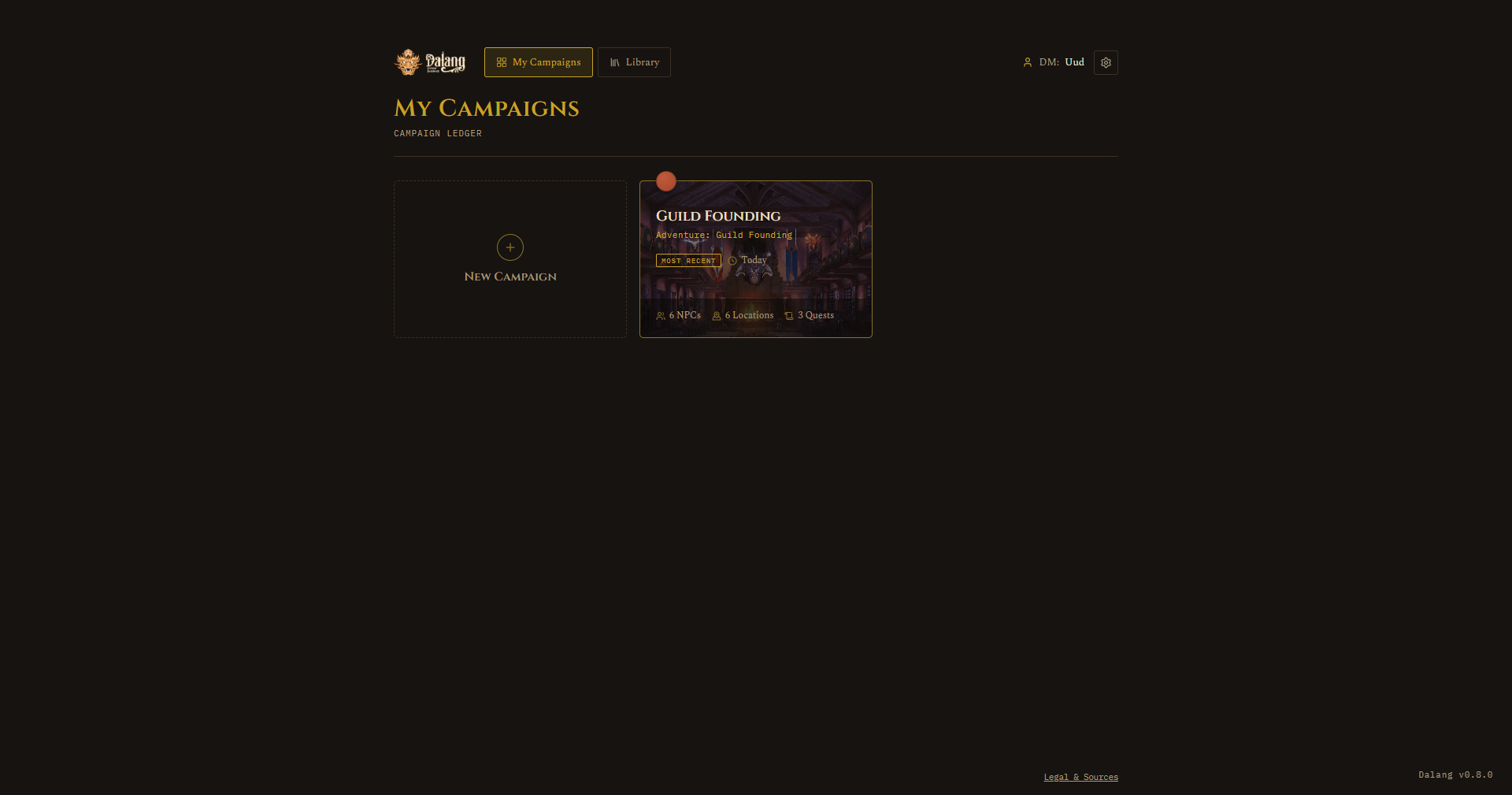
The app opens on the My Campaigns screen every time, it doesn't auto-resume whatever you were last playing.
The very first time you launch it, you'll get a popup asking for your DM name before anything else unlocks. This name is attached to every campaign you create and travels with anything you export or share later, so use something you're fine having a friend see if you ever hand off an adventure.
From My Campaigns you can:
- See a grid of your existing campaigns, most recently played first, each showing NPC/location/quest counts and how long ago you last opened it.
- Click + New Campaign to start one. You'll name it, then choose either Fresh Adventure (start blank) or From Your Library (build off something you saved earlier, see Library).
- Click any campaign card to open it.
- Switch to the Library tab in the top nav to manage saved adventures, or import one from a file.
DM Settings
Opened from a gear icon on the My Campaigns header, this holds a few things that apply across every campaign in the install, not just one:
- DM Name: set on first launch, editable here later.
- Background Image: a URL for a wallpaper shown behind both the My Campaigns and Library screens, with a dark overlay for readability. Separate from a campaign's own background image (see Campaign Settings). Leave it blank to keep the default background.
The My Campaigns footer also has a Legal & Sources link, an in-app page covering ownership, licensing, SRD attribution, privacy, and no-warranty terms, so you don't have to leave the app to read them. The same text is also on this site, see Legal & Sources.
Finding your way around
Once inside a campaign, the sidebar is grouped into four sections:
Preparation: Story, Gameplay, Campaign Prep, NPC, Job Board / Quest, Players
Active Campaign: Active Campaign, Event Log
Reference: Compendium
Settings: Campaign Settings
The Active Campaign tab gets a small dot next to it whenever a session is actually running, so you can tell from the sidebar alone whether something's live. Clicking a tab you're already on resets it back to its list view, handy if you drilled into a detail screen and want to back out fast.
At the bottom of the sidebar, Back to My Campaigns takes you out to the campaign picker.
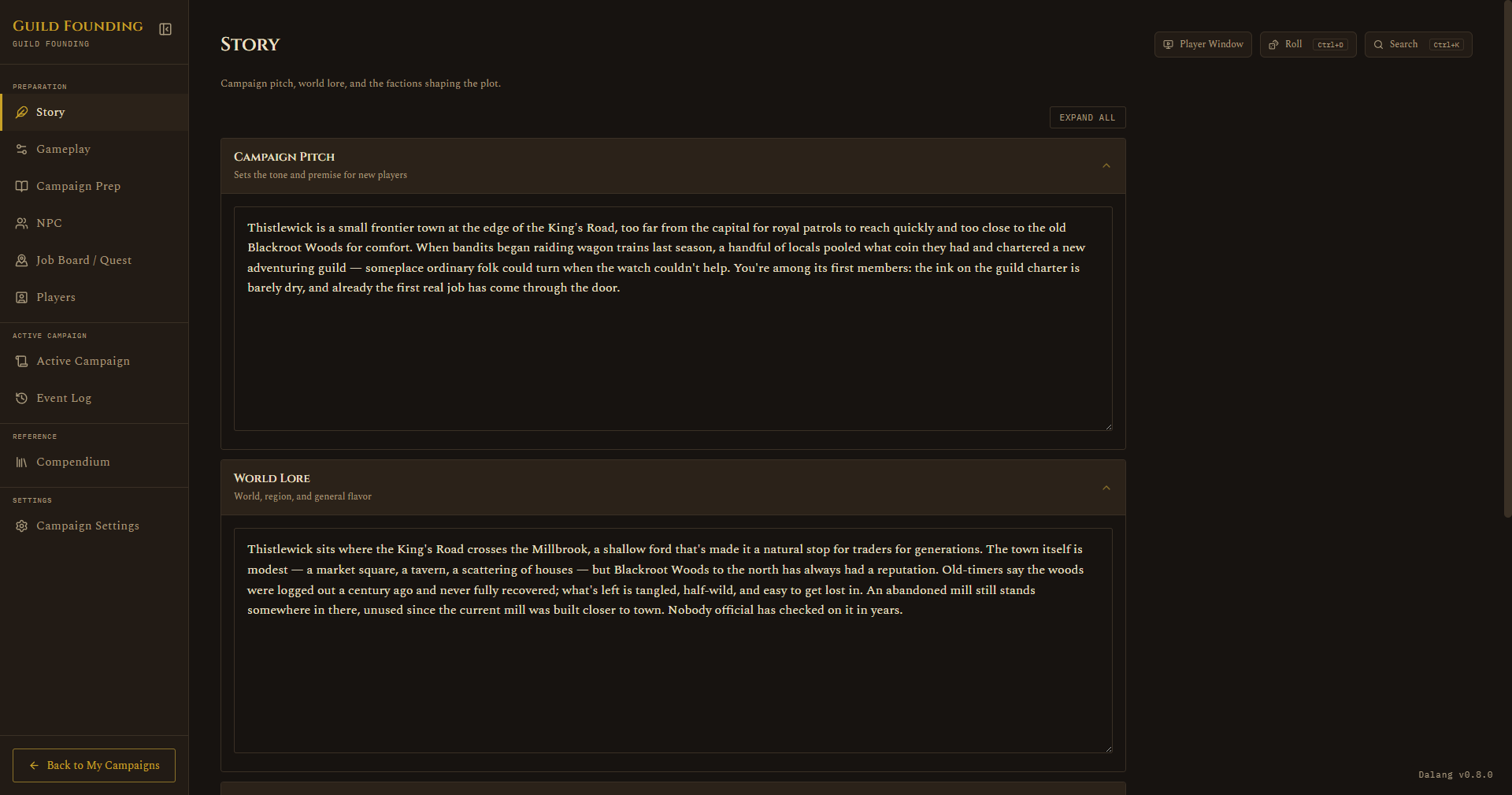
The header row above the sidebar also holds a couple of tools reachable from any tab, not just one screen: Compendium quick search (Ctrl+K), the Dice Roller (Ctrl+D), and Open Player Window, which used to live only on the Active Campaign tab and is now reachable from every tab.
Pressing Escape cancels whatever confirm dialog is currently open, anywhere in the app, a misclick is one keypress to back out of instead of having to aim for Cancel.